Posts

Showing posts with the label iOS

How to delete an app in iPhone while preserving the data? Offloading apps manually and automatically in iOS
Image
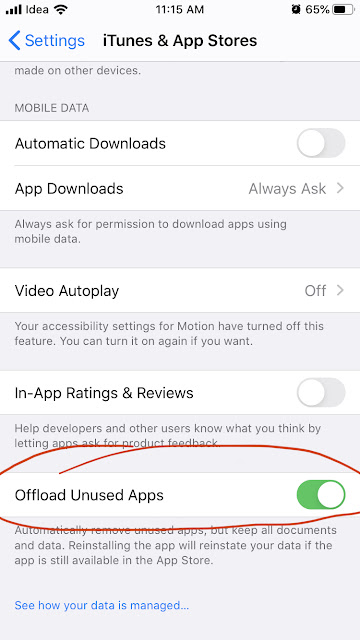
The iOS have a feature that is called 'Offloading' app that can be used to delete the app and recover space, at the same time preserve the data and also the icon on the device itself. You might have wondered why there is a small cloud symbol to the left side of the name of some of the apps. These apps are offloaded. This comes very handy when you doesn't require some heavy apps once in a while. In that case you can offload the app when not required and restore from app store in one click. Note: The app can be restored only if it is still available in app store.

iOS 13.1 heats up iPhone

The iOS 13.1 was released recently and using the iPhone for a while makes it build temperature to the  area near the camera. This is the area where the microprocessor A10 chip is located. So while it means the processor is working hard doing regular jobs, it is noted that the phone is heating up when the dark mode is enabled. Using the phone with normal mode doesn’t appear to heat it too much. I am monitoring the issue and will post an update soon. *** UPDATE After each update, most of the apps needs to be configured on first use. So, immediately after the update the apps will take more processing power to configure. After that things will return to normal.

How to delete an app is iOS 13? - Solution

Image
Apple have removed the 3D touch feature from iOS 13 as earlier rumored. To delete an app we had to long press the app and all the apps start wiggling in the screen with a (x) mark to the top end of the icon. Clicking the icon will uninstall the app. Now, long pressing the app does not make the apps wiggle in iOS 13. So how do you delete an app? The feature is moved to the menu that opens when you long press the app. It is renamed to 'Rearrange Apps'. When you click 'Rearrange Apps' the apps starts to wiggle and an (x) mark show to the right top section of all apps those can be deleted.

Easily share a URL from the Computer to your iPhone

When browsing the net though your computer sometimes you like to view a particular link on your phone as well. It is not easy to type in the URL if it is longer and particularly difficult if it has numbers and characters. Here is an easy method to share/get the URL from your Computer browser to your iPhone.

Scan QR and Barcode in iPhone using Google Chrome

The latest release of Google Chrome for iOS has added the facility to scan and search with QR code and Barcode. iPhone that support 3D touch can long press the Google Chrome logo and reveal the QR code scanner. For iPhones without 3D touch, search "QR" in the Spotlight search (swipe down from the top in the home screen) to reveal the Scan QR Code link.

Enable and use built-in (offline) Dictionary in iPhone and iPad

iPhone and iPad have provision to download and use dictionary so that you do not need to connect to the web to find the meaning of a word. The provision is hidden, though. To download and enable the dictionary, follow the steps below: Tap any word in an app (like Mail, iBooks, Browser) to reveal the menu to Copy, Define and Speak. Click Define. You will be shown a new window with a link 'Manage' to the left bottom. Click the Manage link. You will be shown a list of all dictionaries that can be downloaded to the device. Double Tap on the iCloud icon to the right of the dictionary that you want to download. To delete the dictionary, click the (x) icon that appears instead of the iCloud icon. Once the dictionary is downloaded, you can click the Define menu (Step 1 & 2) to get the meaning of the word. Note: The dictionary files will be removed if you restore the iOS device and need to be downloaded again.